iPhone 14 Pro 128GB Space Black: How to Use It Effectively
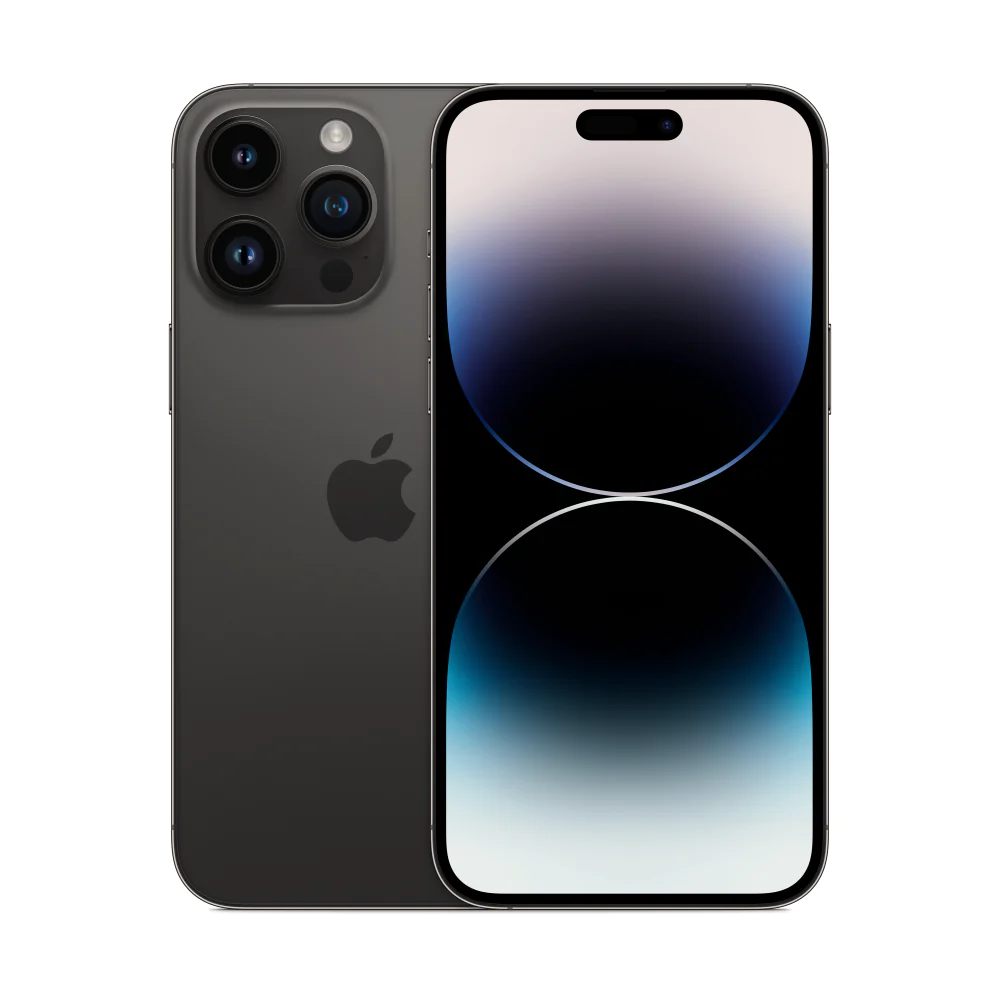
If you have just bought the iPhone 14 Pro 128GB Space Black, you may wonder how to get the most out of it. This guide walks you through the essential steps, from first power‑on to daily shortcuts, with a focus on what matters to users in Uganda.
Key takeaways
- Initial setup takes under five minutes.
- Dynamic Island replaces the notch for quick actions.
- 48MP camera settings can be saved as presets.
- Battery life supports a full day of video playback.
- Crash Detection works without extra apps.
iPhone 14 Pro 128GB Space Black: First Setup Steps
Turn on the device by holding the side button until the Apple logo appears. Follow the on‑screen language selection, then connect to a Wi‑Fi network—most Ugandan cafes and homes now offer stable 5G‑ready Wi‑Fi. Sign in with your Apple ID or create a new one; this will sync contacts, photos and iCloud backups.
During setup you’ll be asked to enable Face ID. Position the phone about 10‑15 cm from your face, look directly at the camera and follow the prompts. Face ID works instantly for unlocking, Apple Pay and secure app logins.
Navigating the Dynamic Island and Always‑On Display
The Dynamic Island replaces the traditional notch. It expands to show timers, incoming calls, music controls and Live Activities. Tap the island to open the corresponding app, or swipe left for quick actions. The Always‑On display shows the lock‑screen time and widgets without waking the phone, saving battery.
Getting the Most from the 48MP Main Camera
The iPhone 14 Pro camera system boasts a 48MP sensor that delivers up to four times the resolution of previous models. In the Camera app, switch to “ProRAW” for maximum detail, then use the built‑in presets for landscape, portrait or night mode. Ugandan photographers often capture sunrise over the Nile; the new sensor retains colour fidelity even in low light.
For video, enable Cinematic mode in 4K Dolby Vision up to 30 fps. The Action mode stabilises handheld footage, perfect for documenting city traffic or weekend trips to Murchison Falls.
Battery Management for All‑Day Use
Apple lists up to 23 hours of video playback on a single charge. To stretch that further, enable Low Power Mode in Settings → Battery when you know you’ll be away from a charger. The device supports fast charging; a 20 W adapter can top up to 50 % in about 30 minutes.
Safety Features: Crash Detection and Emergency SOS
Crash Detection uses motion sensors and the A16 Bionic chip to recognise severe car accidents. If the phone detects a crash and you’re unresponsive, it will automatically call emergency services and share your location. Activate Emergency SOS in Settings → Emergency to add a local Ugandan emergency contact.
“Crash Detection calls for help when you can’t.” – Apple product description
Connectivity and Local Network Tips
The iPhone 14 Pro supports superfast 5G, but availability varies across Ugandan carriers. Check with your provider for compatible plans. For eSIM users, go to Settings → Cellular → Add Cellular Plan and scan the QR code supplied by the carrier.
If you prefer a physical SIM, the device holds a nano‑SIM in the tray on the side. Insert the SIM, then restart to register on the network.
| Feature | iPhone 14 Pro | iPhone 14 Pro Max |
|---|---|---|
| Display size | 6.1‑inch Super Retina XDR | 6.7‑inch Super Retina XDR |
| Main camera | 48 MP (up to 4× resolution) | 48 MP (same sensor) |
| Video playback | Up to 23 hours | Up to 28 hours |
Practical Tips for Ugandan Users
Use a protective case with a raised edge to guard against dust on dusty roads. The Ceramic Shield front cover resists scratches, but a clear case adds peace of mind.
Set your region to Uganda in Settings → General → Language & Region to get localised Siri responses and currency formats.
Finally, explore the App Store for locally relevant apps—mobile banking, transport (like Uber or local equivalents) and weather forecasts that use the phone’s location services.
With these steps you’ll move from unboxing to mastering the iPhone 14 Pro 128GB Space Black, ready for work, travel and creative projects across Uganda.
iPhone 14 Pro 128GB Space Black
UGX4,400,000
FAQ
How do I transfer data from my old phone to the iPhone 14 Pro?
Use the Quick Start feature: place the old device near the new iPhone, follow the on‑screen prompts, and choose what to transfer via iCloud or a cable.
Can I use an eSIM in Uganda?
Yes. Go to Settings → Cellular → Add Cellular Plan and scan the QR code provided by your Ugandan carrier.
What is the best way to protect the screen from scratches?
Apply a high‑quality tempered glass protector and use a case with a raised lip.
How does Crash Detection work without an internet connection?
The feature relies on built‑in sensors; if a severe impact is detected, the phone will attempt to call emergency services using the cellular network, even if data is unavailable.
Is the iPhone 14 Pro compatible with 5G networks in Uganda?
The phone supports 5G, but you need a carrier plan that offers 5G coverage in your area.