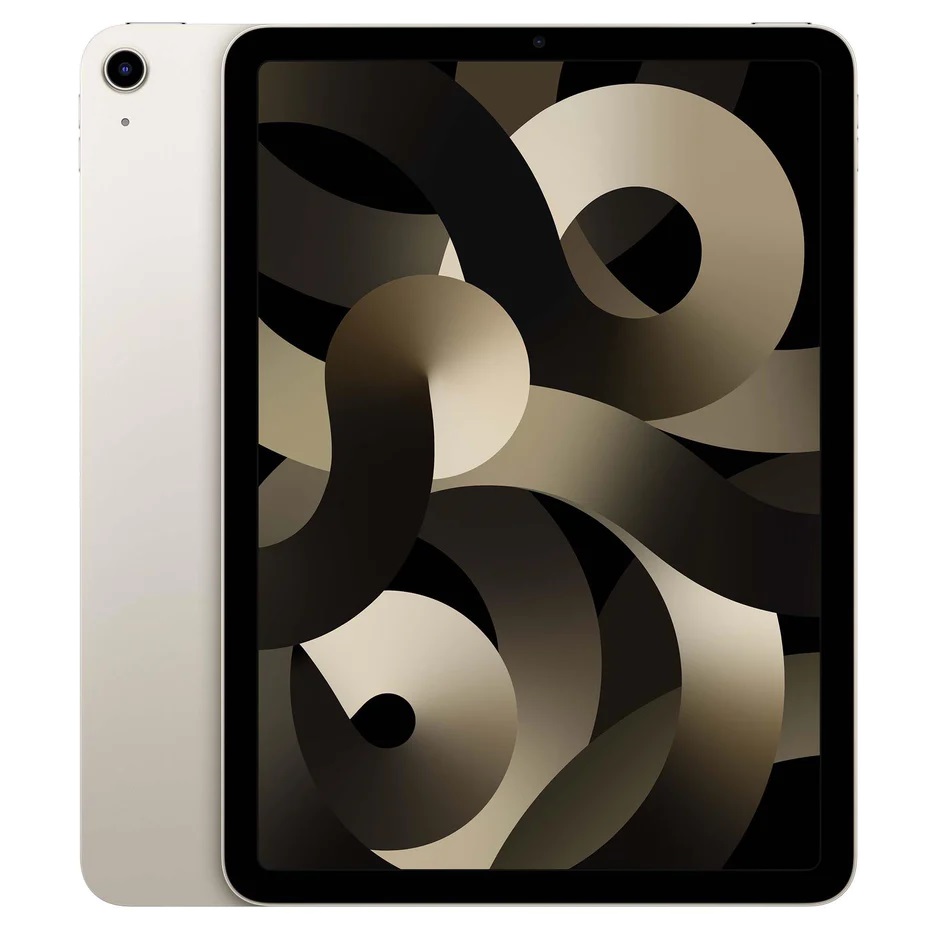
Apple iPad Pro 11 inch Magic Keyboard: How to Use It Effectively
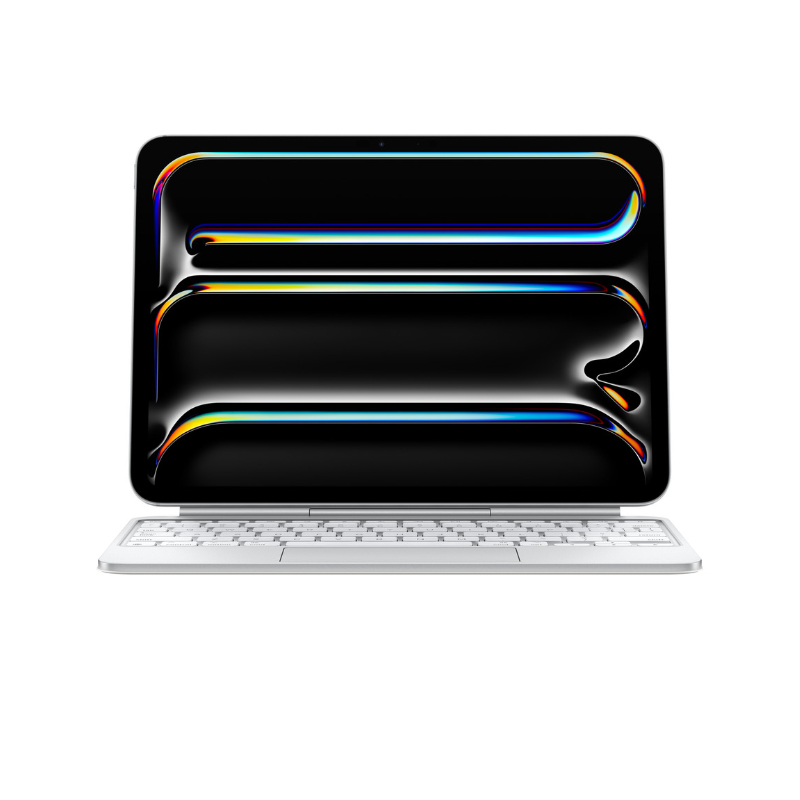
The Apple iPad Pro 11 inch Magic Keyboard turns the iPad Pro into a laptop‑like device that fits in a backpack. In Uganda, the keyboard’s sleek design and built‑in trackpad make it a practical choice for students and professionals alike.
Key takeaways
- Attach the iPad using the magnetic cantilever; no screws needed.
- The USB‑C port on the keyboard lets you charge while you type.
- The 14‑key function row provides quick access to brightness and volume.
- Haptic‑feedback trackpad works with iPadOS gestures for precise control.
- Folded keyboard protects the iPad front and back for on‑the‑go use.
Setting up the Apple iPad Pro 11 inch Magic Keyboard
Start by placing the keyboard on a flat surface with the back of the iPad facing up. Align the magnetic strip on the iPad’s rear edge with the cantilever groove on the keyboard. The magnets pull the iPad into place and lock it securely.
Attaching the iPad
The floating cantilever design lets you swing the iPad forward or backward to choose a comfortable viewing angle. Because the connection is magnetic, you can detach the iPad with a gentle pull if you need to use it standalone.
Connecting the USB‑C charger
The keyboard includes a USB‑C connector on its side. Plug your charger into this port and the iPad will charge while you work. This pass‑through charging eliminates the need for a separate power cable on the iPad itself.
Using the keyboard and trackpad
Once attached, the keyboard behaves like any laptop keyboard. The keys use a scissor mechanism with 1 mm travel and back‑lighting for low‑light environments. The larger glass trackpad features haptic feedback, which mimics the feel of a MacBook trackpad and supports iPadOS gestures such as pinch‑to‑zoom, three‑finger swipe, and cursor movement.
- Typing: The low‑profile keys are quiet and responsive, ideal for long writing sessions.
- Trackpad navigation: Use the cursor to select text in Pages, move between cells in Numbers, or drag files in the Files app.
- Multi‑finger gestures: Swipe with three fingers to switch apps, or pinch with two fingers to zoom in on a PDF.
Function row shortcuts
The 14‑key function row sits above the regular keys. Each button is labeled for quick access:
- Brightness up/down
- Volume up/down
- Play/Pause
- Mission Control
- Screen lock
These shortcuts reduce the need to tap on‑screen controls, speeding up workflow when you’re in a meeting or a noisy environment.
Adjusting viewing angles
The cantilever hinge offers multiple angles, from a low‑angle laptop stance to a higher, tablet‑style view. Experiment with angles for different tasks: a flatter angle for typing, a steeper angle for sketching with the Apple Pencil, or a mid‑range angle for video calls.
Portability and protection
When you fold the keyboard closed, the iPad is encased in a durable aluminum cover that protects the front and back glass. The slim profile (about 6 mm thick) means the whole unit slides easily into a standard laptop bag or a sturdy backpack, making it suitable for Kampala’s bustling streets and university campuses.
| Model | Processor | Screen | Typical price range (UGX) |
|---|---|---|---|
| iPad Pro 11‑inch M4 | M4 | 11‑inch Liquid Retina | Higher (premium) |
| iPad Air 11‑inch M4 | M4 | 11‑inch Liquid Retina | Lower (mid‑range) |
Both devices share the same M4 chip, but the Pro model adds a ProMotion display and more storage options, which justifies the higher price. If you already own an iPad Pro, the Magic Keyboard maximises the device’s productivity potential without needing a separate laptop.
With the Apple iPad Pro 11 inch Magic Keyboard in hand, you can type reports, edit spreadsheets, and draw designs wherever you are in Uganda. Pair it with an Apple Pencil for creative work, and you have a compact workstation that rivals a traditional laptop.
Apple iPad Pro 11-inch M4 Magic Keyboard
UGX1,350,000
FAQ
How do I attach the iPad Pro to the Magic Keyboard?
Line up the magnetic strip on the iPad’s rear edge with the cantilever groove on the keyboard; the magnets will snap it into place.
Can I charge my iPad while using the keyboard?
Yes, the keyboard’s USB‑C port supports pass‑through charging, so you plug your charger into the keyboard.
What gestures work on the Magic Keyboard trackpad?
All standard iPadOS gestures work, including pinch‑to‑zoom, three‑finger swipe for app switching, and cursor movement.
Is the keyboard backlit?
The keys are backlit, making typing easy in low‑light environments.
Will the keyboard protect my iPad when folded?
When folded, the aluminum cover protects both the front and back of the iPad, suitable for travel.
Sources
- Gizmodo: The Same M4 iPad Air at Two Very Different Prices, Amazon Makes the Apple Store Look Expensive
- NeoTeo: Which iPad should you buy? A16, Air, Pro or mini
- The Mac Observer: iPad mini vs iPad Air: the OLED mini costs $50 less than the 11-inch Air
- Tom's Guide: Which iPad should you buy in 2026? Here are the 4 best Apple tablets for every budget
- MacRumors: Best iPad Deals for November 2026